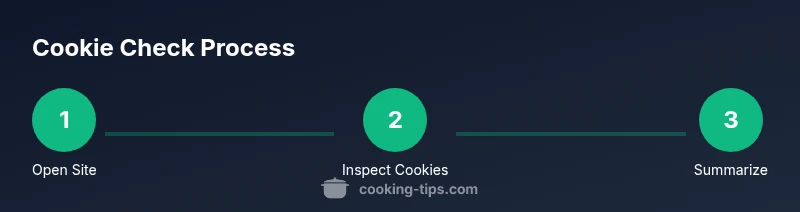
How to Check Cookies on a Website: A Step-by-Step Guide
Learn how to check cookies on a website using browser DevTools, verify cookie attributes, consent signals, and test privacy controls with a step-by-step approach.


You will learn how to check cookies on a website by inspecting cookie storage in your browser, identifying cookie attributes like name, domain, and expiration, and verifying consent signals. This guide covers basic browser inspection, privacy considerations, and common issues for reliable web experiences.
What cookies are and why you might check them
Cookies are small text files that websites store in your browser to remember you, keep you logged in, and tailor content. They also collect data about your browsing for analytics and advertising. Depending on settings and regulations, cookies may be first-party (set by the site you visit) or third-party (set by external services). According to Cooking Tips, cookies can be essential for a smooth shopping cart or personalized meal recommendations on cooking sites, but they also raise privacy concerns if used to track behavior across sites. Understanding cookie scope and attributes helps you assess what data is stored and how long it remains accessible. In this guide, you will learn how to check cookies on a website, including what to look for, how to verify you’re seeing the right cookies, and how to interpret the data in a meaningful way. You’ll also learn how to test how cookie changes affect site behavior and user experience.
When to check cookies on a website
Privacy audits, consent flow testing, and debugging authentication typically require checking cookies. You’ll want to inspect cookies during development, staging, and after deployment to ensure they behave as expected. The Cooking Tips analysis shows that identifying which cookies are essential for functionality versus tracking others is crucial for user trust. If a site fails to set a necessary cookie (or sets one with an overly long expiration), user experience can degrade. This section explains practical scenarios for when to check cookies on a website and how to prioritize checks based on user flows, login state, and cart operations.
How browsers store cookies and what you’ll see
Cookies are stored as key-value pairs with attributes that define scope and behavior. Expect fields such as Name, Value, Domain, Path, Expires/Max-Age, Secure, HttpOnly, and SameSite. Distinguish first-party cookies (from the site you visit) from third-party cookies (from embedded services). Across browsers these attributes appear in the storage inspector, but naming and UI may differ. By understanding these attributes, you’ll know which cookies control login sessions, preferences, and analytics. The data you see should match the site’s stated privacy and consent model, and you can verify inconsistencies by comparing multiple sessions.
How to inspect cookies in popular browsers
Most modern browsers expose cookies in their Developer Tools. In Chrome, open DevTools (usually F12 or right-click > Inspect) and navigate to Application > Storage > Cookies. In Firefox, open the Inspector and view Cookies under Storage. In Edge and Safari, the path is similar (DevTools > Storage). You’ll see columns for Name, Value, Domain, Path, Expires/Max-Age, and flags like Secure and HttpOnly. For each cookie, check whether it relates to the site’s functionality (login, cart) or tracking (ads, analytics). If a cookie looks suspicious or lacks a clear purpose, note it for further evaluation.
Privacy and compliance considerations
Cookies intersect with privacy laws such as GDPR and CCPA. Websites must disclose cookie usage and obtain consent when required. You should check whether cookies mark consent preferences, how long data is retained, and whether third-party cookies are allowed. When testing, verify that consent banners appear before cookies that are not strictly necessary are set, and that users can withdraw consent easily. The Cooking Tips team recommends documenting consent flows and storage practices to ensure transparency and reduce compliance risk.
Common issues and how to fix them
A few common problems arise when checks fail: cookies being blocked by browser settings, third-party cookies being restricted, or SameSite attributes preventing cross-site usage. To fix, review cookie attributes, adjust site code to set Secure and HttpOnly as appropriate, and ensure the correct Domain and Path cover the intended scope. If a cookie is missing or incorrect, re-run the page load and verify that the server sends the expected Set-Cookie header. In testing environments, disable extensions that could interfere with cookie storage to isolate the issue.
How to test cookies programmatically
You can enumerate non-HttpOnly cookies with document.cookie in the browser console, but HttpOnly cookies aren’t accessible via JavaScript for security. For a deeper test, use fetch or XMLHttpRequest to observe server-set cookies, and inspect response headers for Set-Cookie values. You can also simulate user actions (login, search, add to cart) and re-check cookies to confirm they update correctly. This helps validate that cookies persist appropriately across sessions and that privacy controls function as intended.
Best practices for cookie management
Aim for clear disclosure of what cookies do and why they’re used. Favor first-party cookies where possible and minimize third-party tracking. Use Secure and HttpOnly flags to protect cookies in transit and prevent client-side access to sensitive data. Set the SameSite attribute to restrict cross-site usage unless necessary. Retain cookies only as long as needed and provide easy options for users to manage their preferences. Regularly audit cookies during development and after deployment to maintain compliance and user trust.
Quick checklist for developers
- List all cookies set by the site and categorize them by purpose (essential, analytics, advertising).
- Verify consent flow is shown before non-essential cookies are set.
- Check attributes (Domain, Path, Expires, Secure, HttpOnly, SameSite).
- Test across multiple browsers and devices.
- Document findings and retain auditable records of testing.
Authority sources and further reading
For authoritative guidance, see:
- Implementing cookies and privacy practices: https://www.consumer.ftc.gov/articles/0038-online-advertising-and-privacy
- Cookies explained by developers: https://developer.mozilla.org/en-US/docs/Web/HTTP/Cookies
- Cookie usage standards and security: https://tools.ietf.org/html/rfc6265
Note: Always refer to official privacy regulations applicable to your region.
Tools & Materials
- A modern web browser (Chrome, Firefox, Edge, or Safari)(Latest version recommended for DevTools features)
- A computer with internet access(Any OS; ensure you can install browser updates)
- Browser Developer Tools (built-in)(Open via F12 or right-click -> Inspect)
- Optional: Cookie viewing extensions(e.g., EditThisCookie or similar; for quick views)
- Optional: Access to the test website or staging environment(To validate in a controlled setting)
Steps
Estimated time: 25-40 minutes
- 1
Open site in a private window
Launch the target website in an Incognito/Private window to isolate cookies from your regular session. This helps you see what cookies are set during a clean session and prevents interference from existing cookies.
Tip: Use private mode to prevent previous cookies from skewing results. - 2
Open Developer Tools and go to Storage
Open your browser's DevTools (usually F12 or right-click > Inspect) and navigate to the Storage or Application tab. This is where cookies are listed by domain and path, making it easy to inspect their properties.
Tip: In Chrome, you’ll use Application > Storage > Cookies. - 3
Identify relevant cookies
Look for cookies that belong to the site you’re testing. Distinguish essential cookies (e.g., session IDs) from analytics or ad cookies. Note the Name, Value, Domain, Path, Expires, Secure, HttpOnly, and SameSite attributes.
Tip: Filter by domain to avoid confusion with third-party cookies. - 4
Verify attributes and behavior
Check that cookies have appropriate domains and paths, sensible expiration, and that Secure/HttpOnly flags are set where appropriate. Confirm SameSite settings align with cross-site usage requirements.
Tip: HttpOnly cookies cannot be read from JS; rely on server logs to verify them if needed. - 5
Test cookie changes
Edit or delete cookies selectively in the DevTools and reload the page to observe effects on login state, cart contents, or personalization. Recheck persistence after a new session starts.
Tip: Avoid permanent edits in production; use a staging environment for experiments. - 6
Document findings
Record which cookies exist, their purposes, and any issues observed. Create a concise report with screenshots and notes for future audits or debugging.
Tip: Include exact cookie names and values when safe to do so; redact_sensitive values.
Quick Answers
What are cookies and why should I check them on a website?
Cookies are small data files stored by a browser to remember user preferences, login state, and tracking information. Checking cookies helps you understand site behavior, privacy practices, and compliance with regulations.
Cookies are small data files used to remember preferences, log you in, and collect usage data. Checking cookies helps you understand how a site tracks you and stores information.
How do I view cookies in Chrome?
Open DevTools (F12), go to the Application tab, and inspect Cookies under the Storage section. You’ll see each cookie’s name, value, domain, path, expiration, and flags.
Open DevTools, click Application, then Cookies to view details for every cookie the site sets.
Are there privacy risks when cookies are enabled?
Yes. Cookies can track behavior across sites and store personal data. Ensure transparency, consent, and limits on third-party cookies to protect user privacy.
Cookies can track you and store data; manage consent and limit third-party cookies to protect privacy.
Can I delete cookies without breaking the site?
Deleting non-essential cookies can sign you out or reset preferences, but many sites rely on cookies for function. Test in a controlled environment to understand impact.
Deleting cookies may sign you out or reset preferences; test to see what changes.
What is HttpOnly cookie and why does it matter?
HttpOnly cookies are inaccessible to JavaScript, protecting them from certain attacks. They are typically used for session management and should be flagged appropriately.
HttpOnly cookies can't be read by JavaScript, protecting sensitive data.
Watch Video
Top Takeaways
- Check cookies to understand site behavior and privacy.
- Differentiate essential vs. tracking cookies by purpose and attributes.
- Use DevTools to inspect Domain, Path, Expires, and SameSite settings.
- Document findings with evidence for audits and compliance.