How to Block a Cookie: A Practical Privacy Guide
Learn to block cookies across browsers and devices with step-by-step instructions, managing third-party vs first-party cookies, and practical tips for home users.


In this guide you will learn how to block cookies across major browsers and devices, including desktop Chrome, Firefox, Edge, Safari, and mobile browsers. We'll cover what cookies do, which ones to block (third-party vs first-party), and how to adjust settings without breaking essential site features. You’ll need a browser or device, an internet connection, and a basic privacy mindset.
Understanding Cookies and Why Blocking Them Matters
Cookies are small data files that websites store on your device to remember preferences, track activity, and personalize content. While cookies help sites function smoothly, they also enable advertisers and analytics services to track you across visits. By blocking cookies—especially third-party cookies—you reduce tracking, limit data collection, and regain some control over your online privacy. This section explains what cookies do, the differences between first-party and third-party cookies, and why you might want to block them as part of a broader privacy routine. The Cooking Tips team emphasizes that privacy is a spectrum, not an all-or-nothing choice. The goal is to reduce unnecessary data collection while preserving essential usability. In this guide, you’ll learn how to implement cookie blocking across desktop and mobile devices, evaluate trade-offs, and test changes across common sites you visit for recipes, grocery shopping, and cooking tips.
How Blocking Cookies Affects Your Browsing Experience
Blocking cookies can improve privacy and sometimes speed up page loading while reducing cross-site tracking. Third-party cookies are the primary source of behavioral advertising; blocking them typically results in fewer personalized ads and less cross-site data sharing. First-party cookies, however, store essential information like your login status and site preferences. In practice, blocking third-party cookies keeps you more private without erasing necessary cookies. If a site relies on third-party scripts (like embedded reviews or analytics), you may see popups asking to allow cookies or some site features temporarily unavailable. You can mitigate this by whitelisting trusted sites and using per-site controls. A key trade-off is friction: you might need to log in again or reselect preferences on some sites. The Cooking Tips guidance recommends balancing privacy goals with the usability you expect during cooking research and online shopping.
Cookie Blocking Across Desktop Browsers: Chrome
Chrome users can block cookies by navigating to Settings > Privacy and security > Cookies and other site data. Choose 'Block third-party cookies' for strong privacy with minimal site disruption, or 'Block all cookies' for maximum control, knowing some websites may not function. After selecting a level, reload sites to apply changes and test login flows. If a site looks broken, add it to the allowed list under Site settings > Cookies and site data. This approach keeps most tracking at bay while preserving essential functions like sign-ins and saved preferences.
Cookie Blocking Across Desktop Browsers: Firefox
In Firefox, go to Settings > Privacy & Security > Enhanced Tracking Protection, and select 'Strict' or 'Custom' with cookies blocked for cross-site tracking. Firefox’s per-site controls let you override global settings for sites you trust, which is useful for online recipes services or shopping sites. After enabling blocking, clear existing cookies if you want a clean privacy slate, but remember you may need to sign back in on visited sites. Firefox’s approach offers a balance between privacy and usability, particularly for users who frequent multiple recipe sites and groceries online.
Cookie Blocking Across Desktop Browsers: Edge
Edge users can manage cookies via Settings > Cookies and site permissions > Cookies and site data. Opt for 'Block third-party cookies' for cross-site privacy without breaking essential site features, or 'Block all cookies' with caution. Edge’s site-specific controls allow you to permit cookies on trusted sites while blocking them on others. After adjusting, restart Edge and verify login cookies aren’t needed on sites you frequently use for cooking tips and shopping.
Cookie Blocking Across Safari and iOS
Safari on macOS and iOS handles cookies through Settings > Safari > Privacy & Security. Enable 'Block all cookies' only if you’re comfortable losing logins and saved preferences; a safer option is 'Block cross-site trackers' combined with 'Prevent cross-site tracking' to curb ad networks while maintaining core site functionality. On iOS, you can also adjust per-site cookies by visiting Settings > Safari > Advanced > Website Data. If you rely on features like saved recipes, you may need to allow cookies for those trusted sites.
Using Privacy Extensions and Private Browsing Modes
Privacy-focused extensions (like Privacy Badger or a privacy-focused ad blocker) can complement built-in browser controls by blocking trackers that use cookies invisibly. Private or incognito modes don’t store cookies long-term, but cookies may still be placed during the session; you’ll delete them when you close the window. For home cooks researching recipes, privacy extensions can provide extra protection without requiring you to manually configure every setting across multiple devices. Always review extension permissions and choose reputable tools.
Managing Exceptions: When to Allow Cookies
Most sites still rely on cookies for essential features such as logins, language preferences, and cart contents. The best practice is to block third-party cookies by default and allow first-party cookies for sites you trust. Create per-site whitelists for trusted recipe sites and grocery stores, then periodically review and prune them. If a site stops working, re-check its cookie requirements and adjust temporarily. This approach minimizes tracking while keeping a usable browsing experience.
Practical, Step-by-Step Quick Guide for Common Tasks
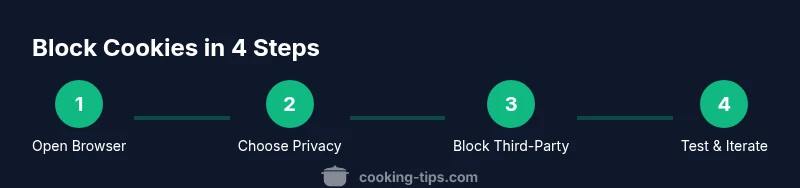
- Start by blocking third-party cookies across your primary browser. - Review site-specific needs by visiting trusted cooking sites and testing login and preferences. - Use private mode to test new changes before applying them universally. - Consider whitelisting essential sites only and gradually expanding as you verify site functionality. - Regularly clear cookies from time to time to reset tracking where needed.
Common Pitfalls and What to Do About Them
Blocking cookies too aggressively can log you out of shopping sites, strip away saved preferences, or break site search and checkout flows. If you encounter issues, temporarily allow cookies for the problematic site, then re-evaluate after a few days. Always back up your settings before making sweeping changes and remember that some devices synchronize privacy settings differently.
Tools & Materials
- Web browser(Chrome, Firefox, Edge, Safari or mobile equivalents)
- Desktop computer or mobile device(Any modern OS with up-to-date apps)
- Internet connection(Stable connection for settings updates)
- Privacy extensions (optional)(e.g., Privacy Badger, uBlock Origin)
- Notes on cookies and tracking(Keep a log of trusted sites for quick whitelisting)
Steps
Estimated time: 20-35 minutes
- 1
Open browser settings
Access your browser’s settings from the main menu. Look for Privacy, Security, or Cookies options to begin the blocking process. This initial action establishes the privacy baseline you’ll adjust across sites.
Tip: Use the search field in settings to jump directly to 'cookies'. - 2
Navigate to cookies controls
In the cookies section, identify whether you’ll block third-party cookies or all cookies. This choice defines the privacy level and potential site usability impact.
Tip: Blocking third-party cookies is usually enough to reduce tracking with minimal breakage. - 3
Choose your blocking level
Select 'Block third-party cookies' as the default. If you experience frequent logouts, consider adjusting to a per-site approach rather than a blanket policy.
Tip: If you’re unsure, start with third-party cookies and test site behavior for a week. - 4
Review site permissions
Visit a few trusted sites and review their cookie permissions. Add trusted cooking sites to an allowlist if needed to preserve login and preferences.
Tip: Per-site controls are your friend for balancing privacy and usability. - 5
Clear existing cookies
Clear existing cookies to remove legacy trackers and reflect your new policy. This may sign you out of some sites.
Tip: Keep a note of frequently used sites to re-login quickly after clearing. - 6
Test across devices
Apply the same blocking approach on mobile browsers. Mobile privacy controls may differ slightly from desktop.
Tip: Test recipes sites and grocery apps to confirm essential functionality remains. - 7
Enable privacy extensions
If you want extra control, install reputable privacy extensions that block trackers without entirely disabling cookies.
Tip: Read reviews and verify extension permissions before installation. - 8
Use private browsing for tests
Experiment in private mode to see how blocking changes affect site behavior without changing your regular profile.
Tip: Private mode is a safe sandbox for testing new privacy settings. - 9
Document your policy
Keep a simple notes file of which sites you allow cookies for and why. This helps maintain a consistent privacy posture.
Tip: Update notes quarterly as you add or remove trusted sites. - 10
Review and adjust periodically
Privacy settings aren’t set-and-forget. Revisit your cookie policy every few months or after major browser updates.
Tip: Set a reminder to reassess quarterly.
Quick Answers
What is a cookie and why block it?
A cookie is a small data file stored by a website on your device to remember information between visits. Blocking cookies can reduce tracking and data collection, but it may also affect login status and preferences on some sites.
A cookie is a small data file a site saves on your device. Blocking cookies reduces tracking but can affect sign-in and saved preferences.
Can I block cookies on all my devices at once?
You can block cookies on each browser and device individually. Settings don’t automatically sync across devices, so you’ll need to repeat the process on each device you use.
Yes, you can block cookies on each device, but you’ll need to configure settings separately on every device you use.
Will blocking cookies stop all ads?
Blocking cookies reduces cross-site tracking, which can limit personalized ads. It won’t remove all ads, and some tracking can occur through other methods that cookies don’t control.
Blocking cookies cuts down on personalized ads, but it won’t stop all advertising entirely.
What is the difference between first-party and third-party cookies?
First-party cookies come from the site you’re visiting and mainly store your preferences and login state. Third-party cookies come from other domains embedded in the site and are commonly used for tracking across sites.
First-party cookies come from the site you visit; third-party cookies come from other domains and are often used for tracking.
How do I block cookies on mobile browsers?
Most mobile browsers have privacy or cookies settings under their menu. Look for Privacy, Site data, or Cookies and choose the blocking level you’re comfortable with; remember some sites may require cookies to function.
On mobile, find Privacy or Cookies in the browser settings and adjust the blocking level. Some sites may need cookies to work.
Do I need to clear cookies after changing settings?
Clearing cookies can help remove older tracking data but may sign you out of sites. It’s optional and can be done when you want a fresh privacy slate.
Clearing cookies is optional; it can help remove old trackers but may log you out of sites.
Watch Video
Top Takeaways
- Block third-party cookies by default for strong privacy
- Use per-site white-listing to preserve usability
- Test changes on trusted sites before applying broadly
- Regularly review cookie settings and extensions for ongoing privacy